The Arch
Ascent.
Omarchy 3, Hyprland on a 50" 4K screen, a 125GB SSD pushed to its limits, and kernel hardening with RKHunter and Lynis — the deep continuation of the Linux migration.
Following up from the initial Linux migration in Side Quest 04, the development side quest took a deep dive into the Arch Linux ecosystem. It has been a wild journey of trial, error, and repeatedly falling into the ultimate noobie trap — forgetting to disable Secure Boot in the BIOS. Let's establish the golden rule of thumb right now: if you don't turn off Secure Boot, your motherboard will aggressively block your machine from initialising any external installation drive. Every single time. Without mercy. ↻ Starting from scratch? SQ04 — The Linux Migration covers the entry-point first
While I initially had my sights set on EndeavourOS for its stripped-down foundation, stumbling upon Omarchy 3 changed the game plan entirely. The out-of-the-box layout configuration was an obvious fit for the workflow. The real shell shock came post-installation — transitioning from standard stacking desktop environments to Hyprland, a dynamic Tiling Window Manager. A full paradigm shift.
Hyprland on a 50" 4K screen.
If you're used to manually dragging, minimising, and overlapping windows with a mouse, switching to keyboard-driven tiling is a massive paradigm shift. Most people give up in the first week because the muscle memory isn't there yet. The payoff is on the other side of that discomfort.
A Tiling Window Manager (TWM) automatically organises every open window into a non-overlapping layout — no manual dragging, no hidden windows, no chaos. Hyprland is the dynamic version: windows animate smoothly between states, workspaces slide, and the whole desktop feels alive. You navigate everything with keyboard shortcuts instead of a mouse, which sounds slower until it becomes faster than any mouse workflow you've ever used.
Running Hyprland on an excessively large monitor — my literal 50" 4K TV screen as a desk setup — is a revelation. Windows automatically tile and scale to perfection across the enormous canvas. Once your muscle memory adapts to relying on the Super Key (the Windows key, for all you normies out there) paired with lightning-fast keyboard gestures, navigating workspaces becomes infinitely more efficient than anything a traditional desktop environment can offer.
Give yourself two full weeks before judging whether tiling is for you. The first three days feel like you've forgotten how to use a computer. By day ten, going back to a stacking window manager feels like driving with one hand tied behind your back. The paradigm shift is real — so is the payoff on the other side.
The golden rule: disable Secure Boot in your BIOS before attempting any Linux installation from an external drive. Secure Boot is a firmware-level security feature that validates whether the bootloader is signed by a trusted authority. Linux installation media won't be on that list. Your machine will block the install drive entirely, silently, without explanation. BIOS first. Installation second. Every time.
Squeezing a 125GB drive.
When your machine is constrained by a tight built-in SSD, every megabyte is prime real estate. The developer of Omarchy 3 might use every pre-installed tool. A minimalist operator has to prune the branches.
The purge was deliberate. Stripped out: built-in bloatware, native webapps, and pre-installed APIs designed for background AI agents I simply don't use. Retained: only the high-performance essentials already documented in the Minimalist Stack — Zed, Zen Browser, Ghostty, VLC, and the basics needed to build.
Because Omarchy is built on an Arch foundation, I integrated the CachyOS Repositories directly. This allows the package manager to pull binaries compiled specifically to exploit the hardware optimisations of modern AMD and high-tier CPUs.
By making full use of the CPU's multiple threads, the system drastically lowers its background RAM and processor load. The laptop runs completely silent, incredibly cool, and is structurally optimised to easily last another decade. The hardware constraint becomes a non-issue when the software is this lean.
Auditing the kernel.
In the Windows world, security is a multi-million dollar corporate sales pitch delivered via heavy, resource-draining antivirus background scans. In the Linux domain, we audit the system ourselves directly through the terminal. No subscription required. No marketing. Just diagnostic tools that tell you exactly what's going on.
The two diagnostic weapons.
RKHunter scans the local file system against a deep database of known rootkits, backdoors, and local exploits. Run it after a major system update or when something feels off. It produces a clear pass/warning/fail report across every scanned component. Clean results feel like pulling a clean blood panel.
Lynis combs through the entire system configuration — checks kernel parameters, inspects running services, reviews file permissions, and spits out an objective Hardening Score alongside explicit diagnostic advice on exactly what to patch. Think of it as a structural integrity report for your OS. The score tells you where you are. The recommendations tell you how to improve.
The four-pillar security stack.
You don't need corporate software suites to stay uncompromised. Lock down your digital identity using four simple foundations — each one addressing a different attack surface.
The workflow and the finds.
Part of the genuine joy of navigating Arch is discovering terminal-based utilities that replace heavy GUI applications — tools you didn't know you needed until you find them and can't imagine working without them.
I'm the first to admit I'm not a veteran software engineer — which is exactly why tools like Neovim still feel inherently alien to me. I prefer the visual elegance and modern layout of Zed Editor. Having the terminal docked natively within a clean, high-performance UI creates a seamless bridge for building out the website archive. No jumping between windows. Everything in one pane.
btop gives a beautifully animated, real-time overview of every system resource cycle — CPU threads, RAM allocation, network traffic, running processes — all rendered elegantly in the terminal without ever opening a GUI app. weathr is a lightweight CLI app that checks local weather conditions without a trip to a tracking-cookie-laden weather website. These are the kinds of tools that make terminal-first computing feel genuinely premium rather than nostalgic.
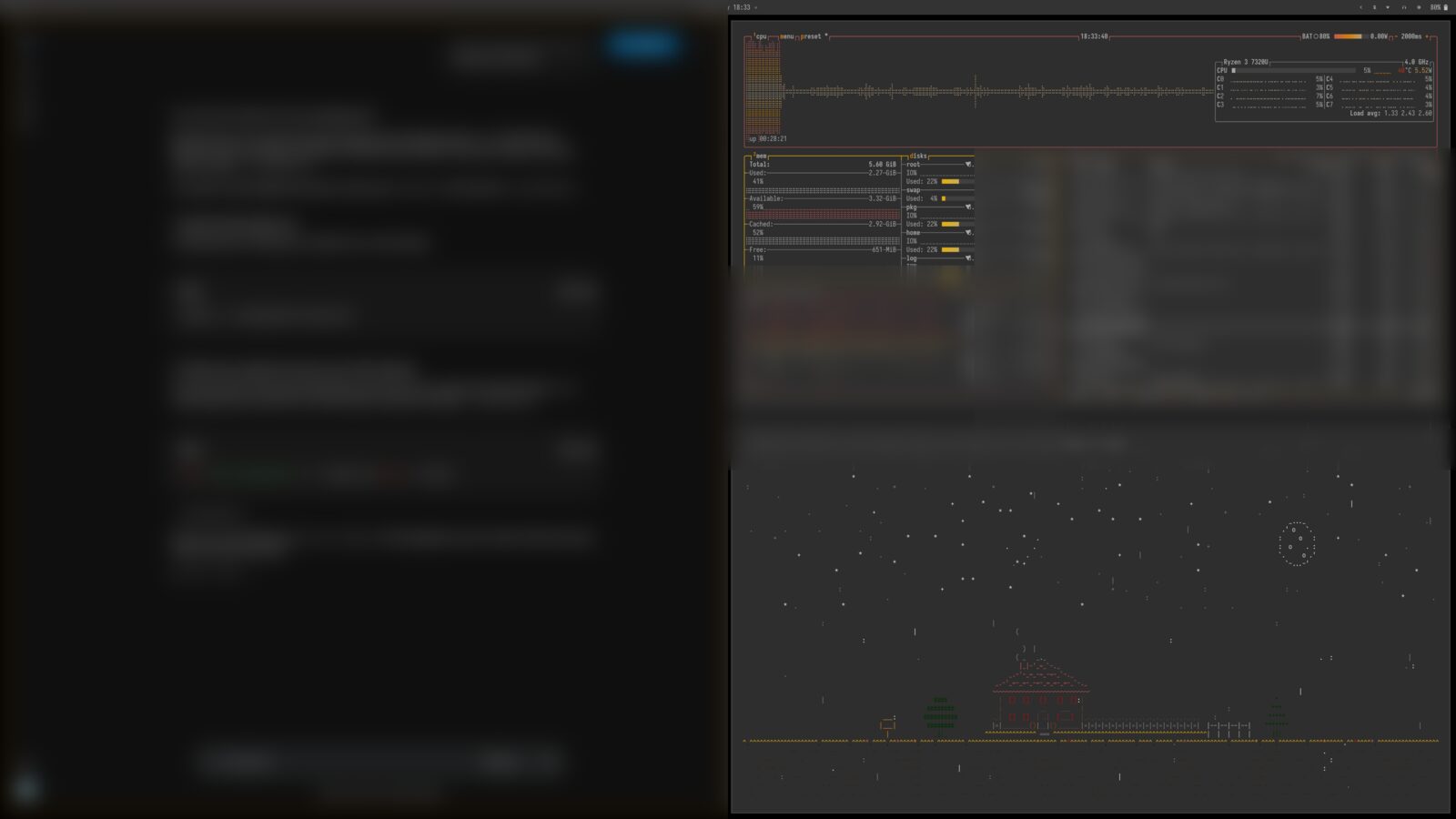
If you install Zed Editor on Arch and try to launch it by typing zed in the terminal —
it won't work. Arch's package maintainers renamed the command to zeditor to avoid
a collision with zed, an ancient ZFS file-system background tool already on the system.
Just type zeditor instead, or alias it:
echo "alias zed=zeditor" >> ~/.bashrc && source ~/.bashrc
The ASCII canvas.
One of the coolest features buried inside the Omarchy architecture is its custom screensaver configuration file. The system lets you open a raw ASCII text file and edit the lettering to whatever layout or quote matches your current philosophy.
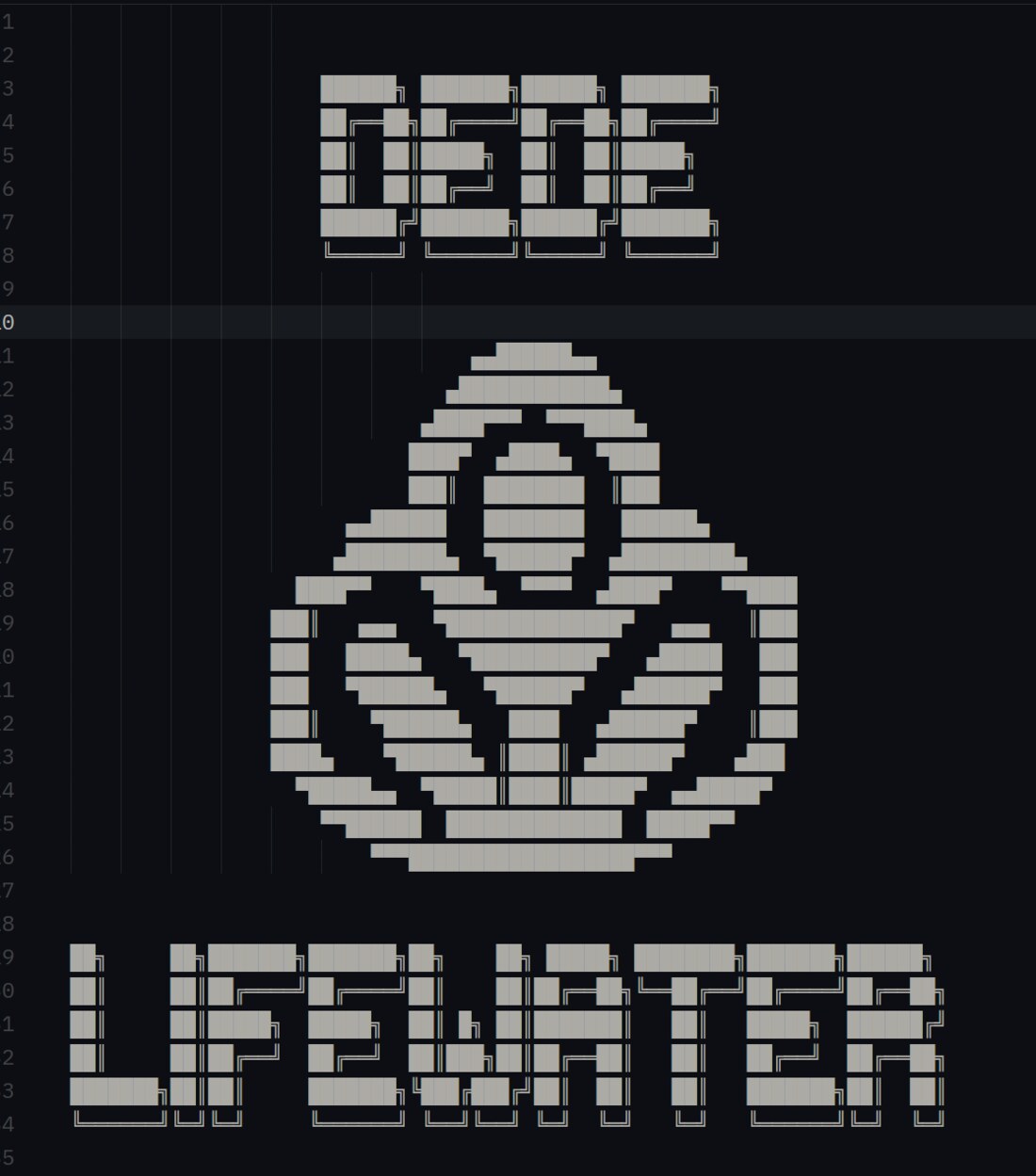
The moment you save the file, the Omarchy engine automatically compiles the text, animates it into a classic 3D rotating structure, and deploys it as your active screensaver. It takes a little terminal tinkering to get the spacing right — ASCII art is sensitive to character width and alignment — but the end result looks incredibly sick. Your own words, rotating in 3D, on a 50" 4K display in a darkened room.
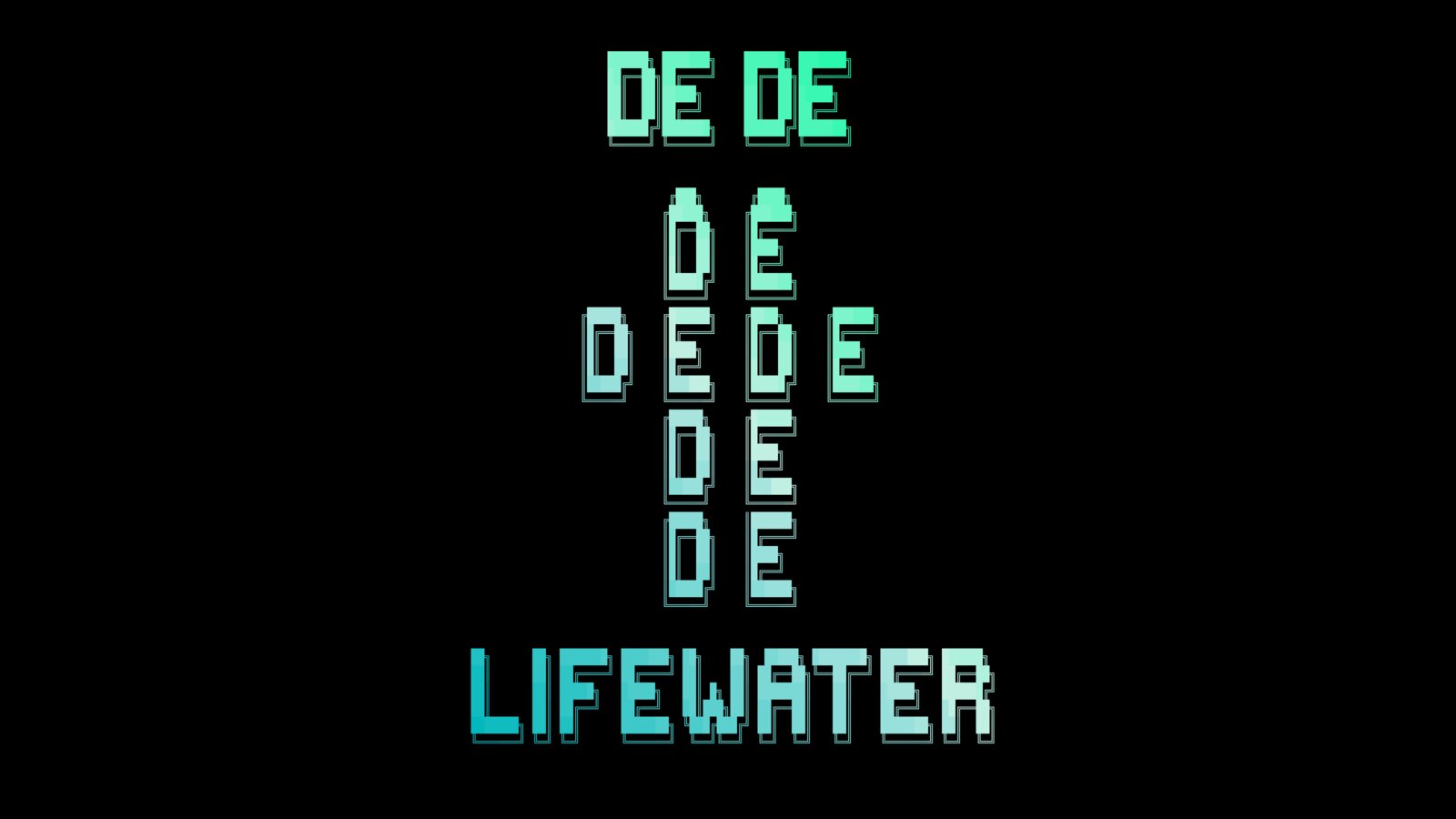
The Omarchy screensaver isn't a feature most people would notice in a changelog. It's a signature detail — the kind of thing that separates a system you inhabit from a system you merely use. Your environment should reflect your philosophy. Even the screensaver.
Arch as a declaration.
SQ04 was the migration — Linux Mint as the clean entry point, CachyOS as the power-user teaser. SQ05 is the full Arch dive: keyboard-driven tiling, surgical storage management, kernel hardening, and a desktop environment that runs completely on your terms.
Arch Linux isn't just an operating system choice — it's a digital declaration of independence. By combining the sleek window management of Hyprland with highly optimised repositories and a minimalist stack, you can transform restricted storage hardware into an absolute developer powerhouse. Whether you're reviving an absolute hardware relic or maximising a bleeding-edge setup, the open-source community provides total ownership over your tech stack.
Stop letting an OS tell you how to compute. Control every pixel. Control every package. Control every process.